Troubleshoot Samsung QLED TV Turns the Volume Up and Down Automatically
For selected TV models from 2019, they have added many new features and are equipped with a “Sound Sensor”. If the TV's volume suddenly adjusts, this is related to a new function, the Sound Sensor. You can activate or deactivate the feature if you want to.
 Please Note: The information on this page is for Australian products only. Models, sequences or settings will vary depending on location and/or where the product had been purchased. To be redirected to your local support page please click here.
What is the sound sensor for?
Sound sensor detects the sound of the surroundings for the Active Voice Amplifier and Adaptive Sound+ functions of Intelligent Mode. These functions can be used only when the sound sensor is activated and the sound output is set to TV Speaker. Therefore, you can make the TV stop from changing volume up and down itself by two methods: switching off the sound sensor or turning off Active Voice Amplifier and Adaptive Sound+.
- Operating Status of Sound Sensor
|
Active voice Ampifier / Adaptive Sound+ (in Menu) |
Switch left (at the bottom of the TV) |
Sound Sensor |
|---|---|---|
|
ON |
ON |
Will be operated |
|
ON |
OFF |
Not operated |
|
OFF |
ON |
Not operated |
|
OFF |
OFF |
Not operated |
Method 1. Turn off the Sound Sensor switch
You can turn the sound sensor on or off on selected QLED TVs from 2019 by using its button at the bottom of the TV. With the TV on, you can push the button to the left to turn the sound sensor on or to the right to turn it off.
You can see the pop-up window on the TV to check whether the sound sensor is turned on or off.
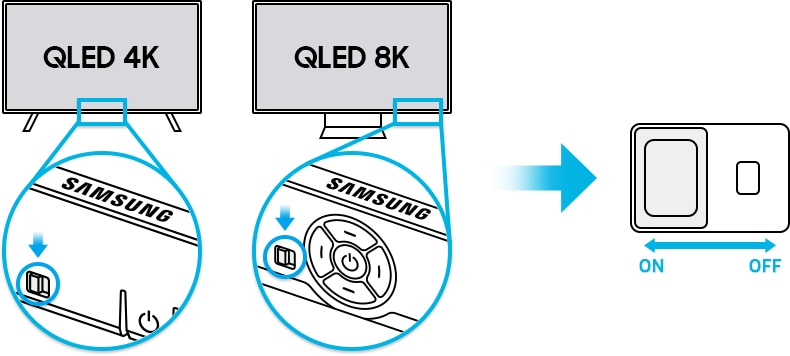
Note: The position and shape of the sound sensor may differ depending on the model.
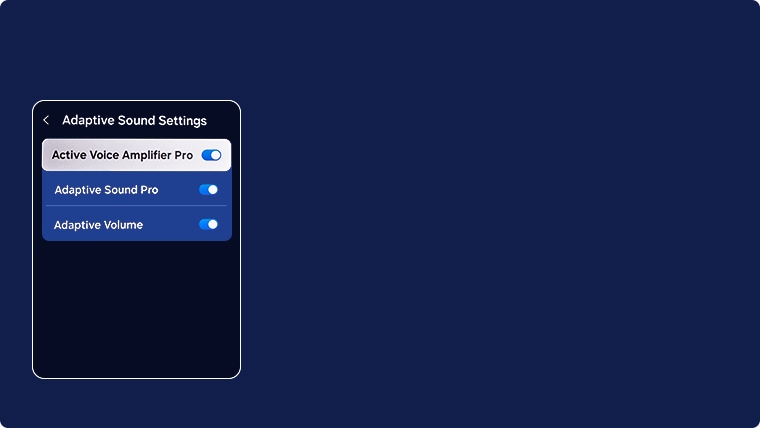
Method 2. Turn off Active Voice Amplifier
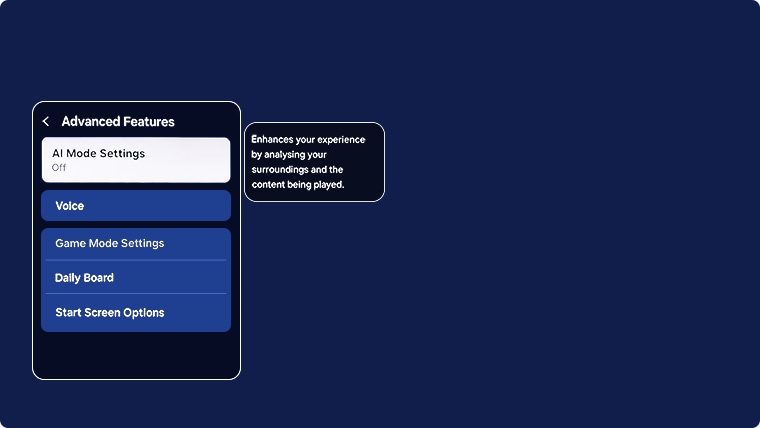
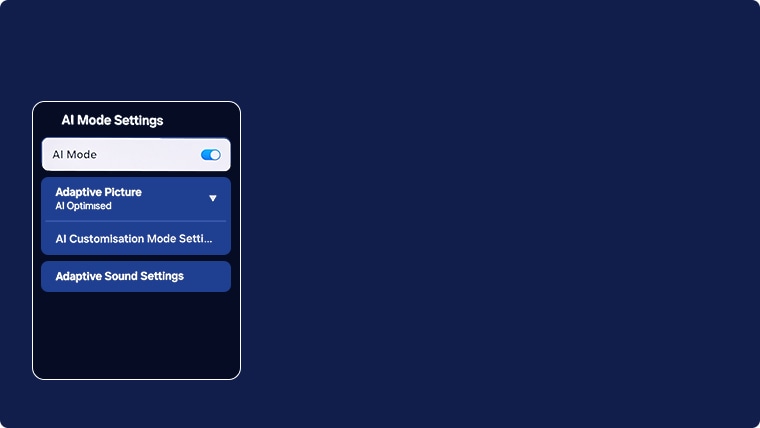
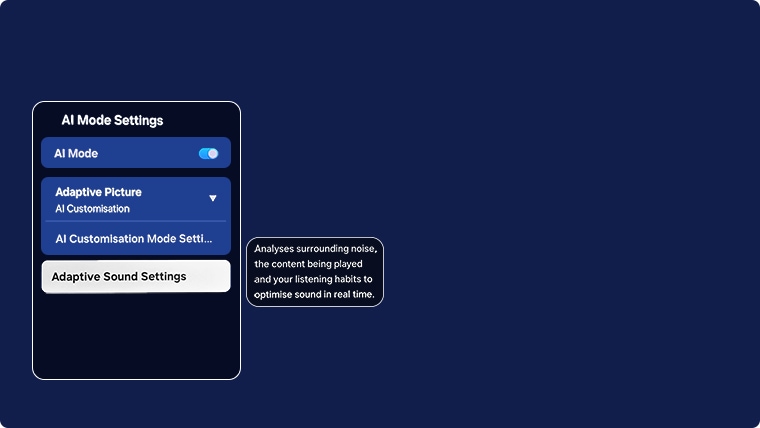
On selected Samsung TVs from 2019, Active Voice Amplifier (Adaptive Volume) analyses the ambient noise and provides optimal sound depending on the noise and Adaptive Sound+ provides optimised sound quality by analysing the viewing space and the acoustic components of the content. They are designed to improve your viewing experience by recognising your content, usage patterns and the environment around your TV. However, if you do not want the automatic volume adjustment to be enabled, follow the steps below to turn it off.
Note:
- For 2025 model TVs, AI Mode is available on 2025 TV models from QN70 and above (excluding 32” TVs).
- For 2024 TV models, Intelligent Mode is available on the LS03D and up.
- For 2020 - 2023 TV models, Intelligent Mode is only available on Q70 and upwards.
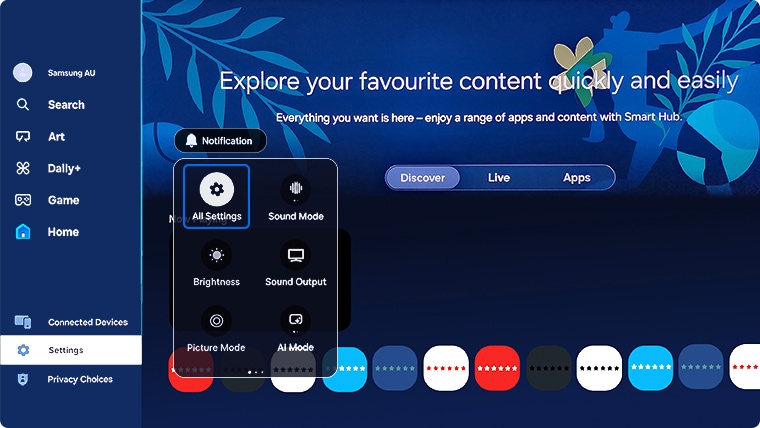
Note: Images were taken from a 2025 model TV. Steps and layout may differ depending on the model of your TV.
To find Active Voice Amplifier on prior compatible models:
- 2023 - 2024 Model TVs: Settings > All Settings > General & Privacy > Intelligent Mode Settings > Intelligent Mode > turn off Active Voice Amplifier
- 2022 Model TVs: Menu > Settings > All Settings > General & Privacy > Intelligent Mode Settings > Intelligent Mode > turn off Active Voice Amplifier
- 2020 - 2021 Model TVs: Settings > General > Intelligent Mode Settings > turn off Active Voice Amplifier
 Settings and then All Settings

For further assistance, please contact our Chat Support. To find your Samsung product's User Manual, head to Manuals & Downloads.
 This product should be mounted to a wall or other suitable surface to avoid serious injury. Find out more here.
Thank you for your feedback!
Please answer all questions.
Contact Info
Contact us
WhatsApp
![]()
![]()

